Getting Started with WeblyBot

A very easy, step-by-step guide to building your first AI Assistant without any coding!

Comprehensive Video Guide

Prefer to watch and learn? Check out our complete video walkthrough below. We visually demonstrate the entire process step-by-step: from creating and verifying your account, to building and integrating your first chatbot, right through to mastering the powerful features of your Customer Admin Panel.

Step 1: Make a Free Account

Welcome! Let's get you set up so you can start creating smart chatbots. Creating an account is completely free and takes less than a minute.

  • 1. Go to the WeblyBot Homepage.
  • 2. Click on the blue "Get Started" button at the top right of the screen.
  • 3. A registration form will pop up. Type in your First Name, Last Name, and Email Address.
  • 4. Choose a secure password, select the "Free Plan", and click "Finalize Registration".
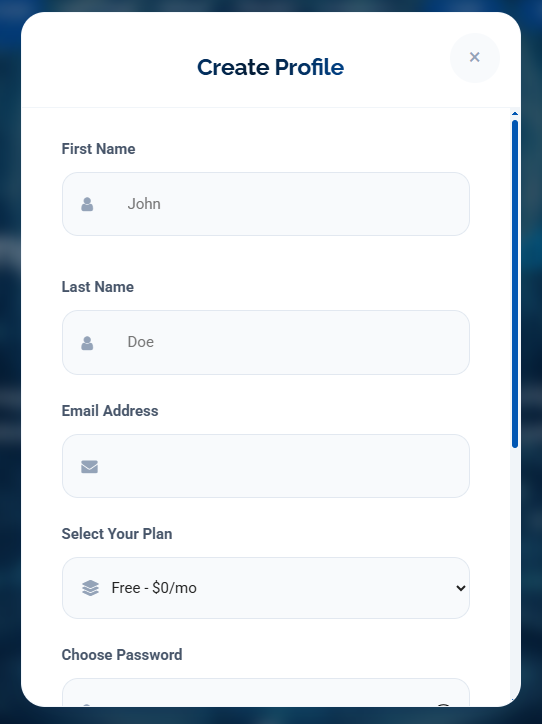
Registration Form Screenshot
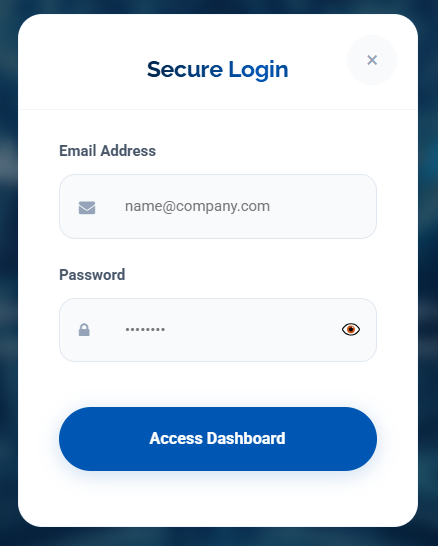
Login Screenshot

Step 2: How to Login

Once you have registered, you need to log in to access your Customer Admin Panel.

  • 1. Click on the "Login" button on the homepage.
  • 2. Enter the email address and password you just created.
  • 3. Verify Your Email: For your security, we will send a 6-digit code to your email inbox. Open your email, find the code, type it in the verification box, and click "Verify & Log In".

Step 3: Create Your First Chatbot

Now that you are logged into your Dashboard, let's create your AI assistant!

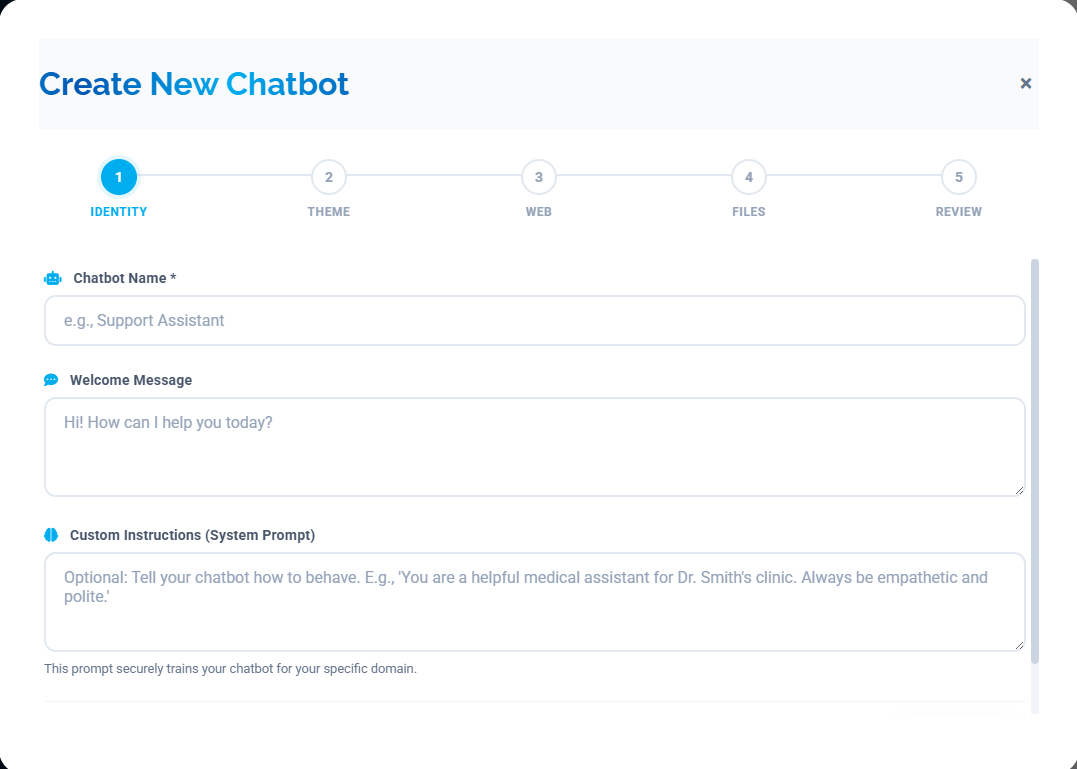
  • 1. Click the "Create New Chatbot" button at the top right of the screen.
  • 2. Name & Welcome Message: Give your bot a name (like "Support Bot") and tell it what to say when a customer opens the chat.
  • 3. Choose Colors: Pick the colors that match your website's beautiful brand.
  • 4. Add Website Links: Simply type in your website link, and the AI will automatically read your website to learn about your business!
  • 5. Upload Files: You can upload PDF documents, text files, or videos. The AI will learn this information to answer customer questions.
  • 6. Click "Create": Your chatbot is now ready to serve your customers!
Creation Wizard Screenshot

Step 4: How to Use Your Chatbot

Your chatbot is alive and knows your business! Now you need to put it on your website.

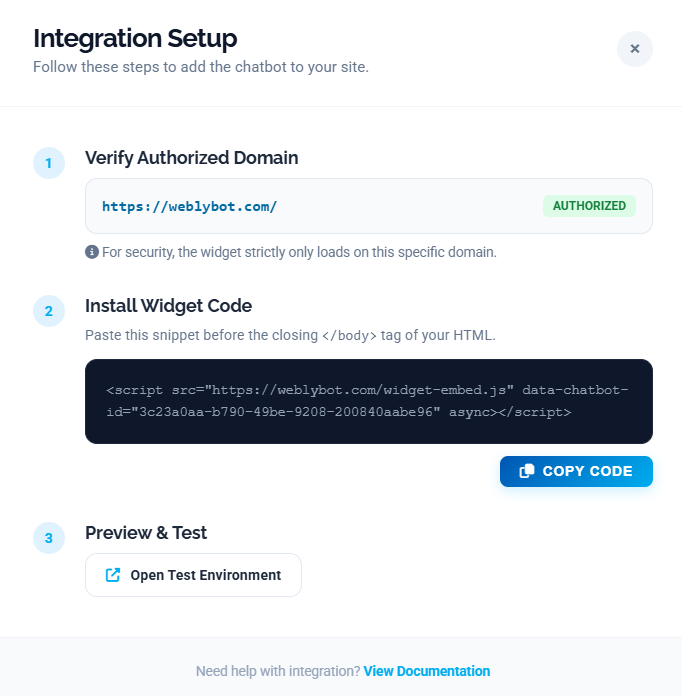
  • 1. On your Dashboard, click the "Integrate" or "Code" button next to your new chatbot.
  • 2. You will see a small piece of code. Click the "Copy" button.
  • 3. Paste this code into your website's HTML, just before the closing </body> tag. (If you use WordPress or Shopify, you can paste it in the header/footer plugin settings).
  • 4. That's it! A chat bubble will now appear on your website, ready to talk to your visitors 24/7.

Understanding the Customer Admin Panel

The Customer Admin Panel is your control center. It's designed to be very easy to use. Here is what every tab does on your left sidebar:

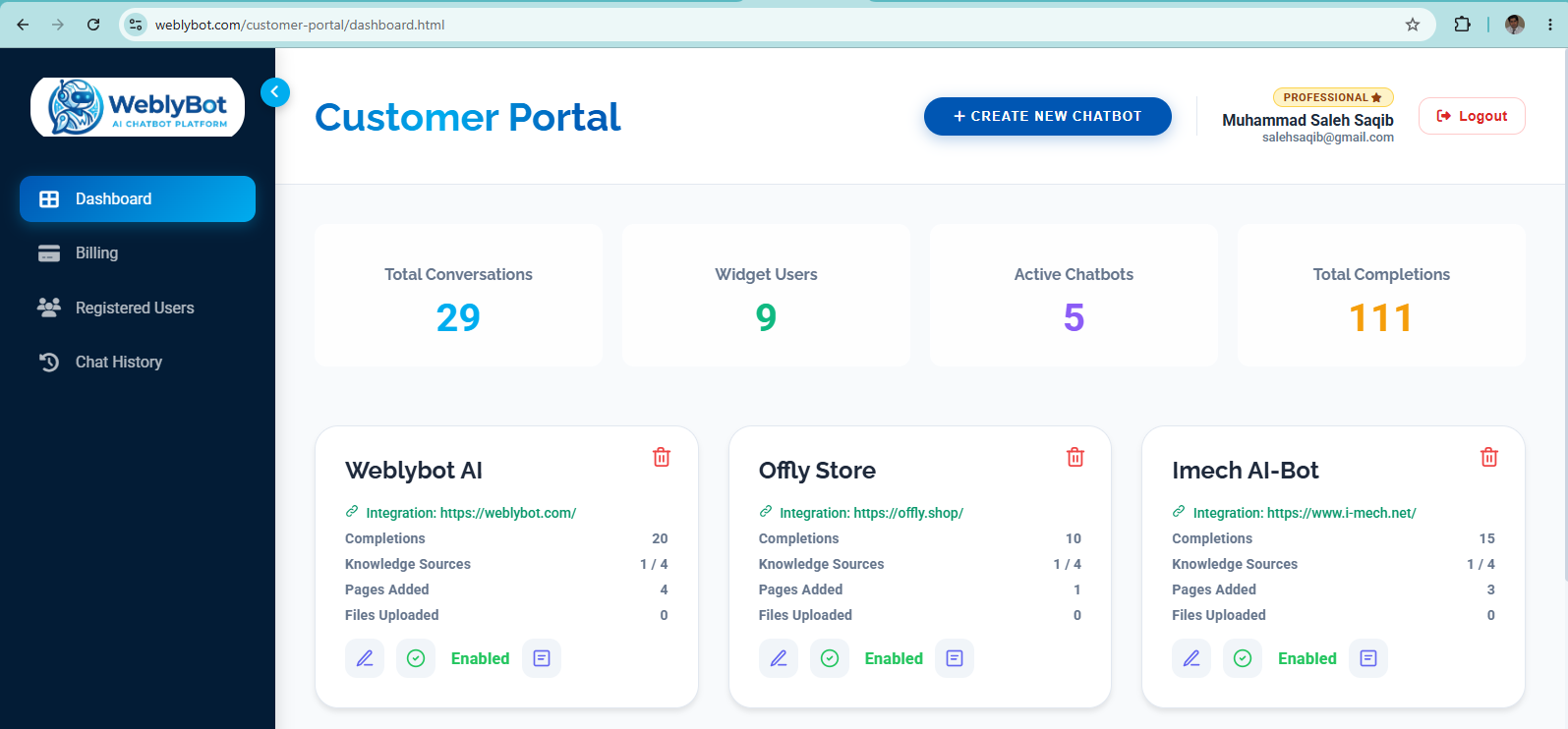
1. The Dashboard

This is the first screen you see. It shows you quick numbers: how many conversations your bot has had, how many users talked to it, and how many active chatbots you have. You can also view the list of your chatbots here to edit or integrate them.

Dashboard Tab

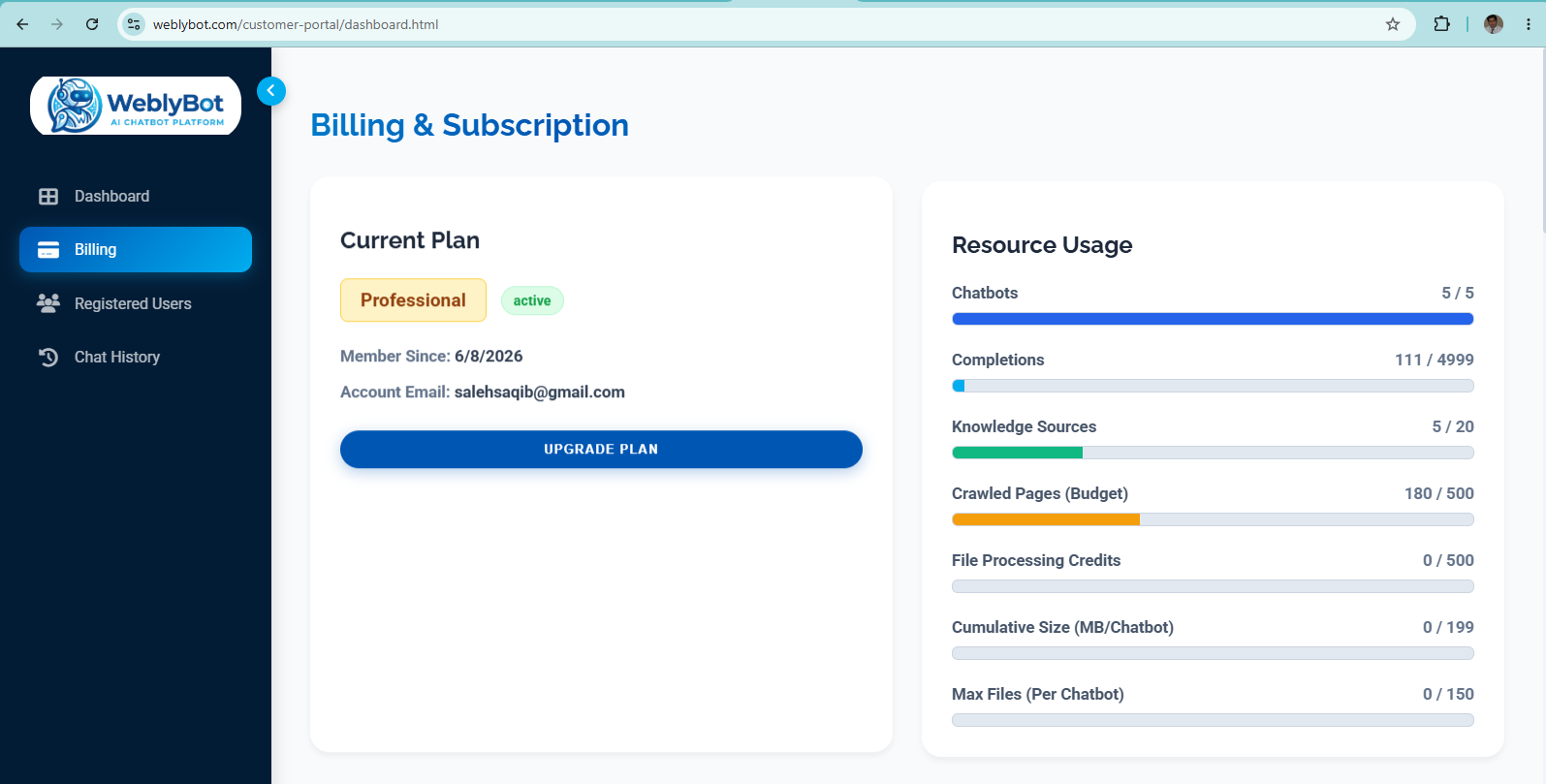
2. Billing & Subscription

This tab helps you track your usage. It shows a progress bar for how many messages (completions) you have used, how many files you've uploaded, and what your current plan is. You can upgrade your plan or check your payment history here.

Billing Tab

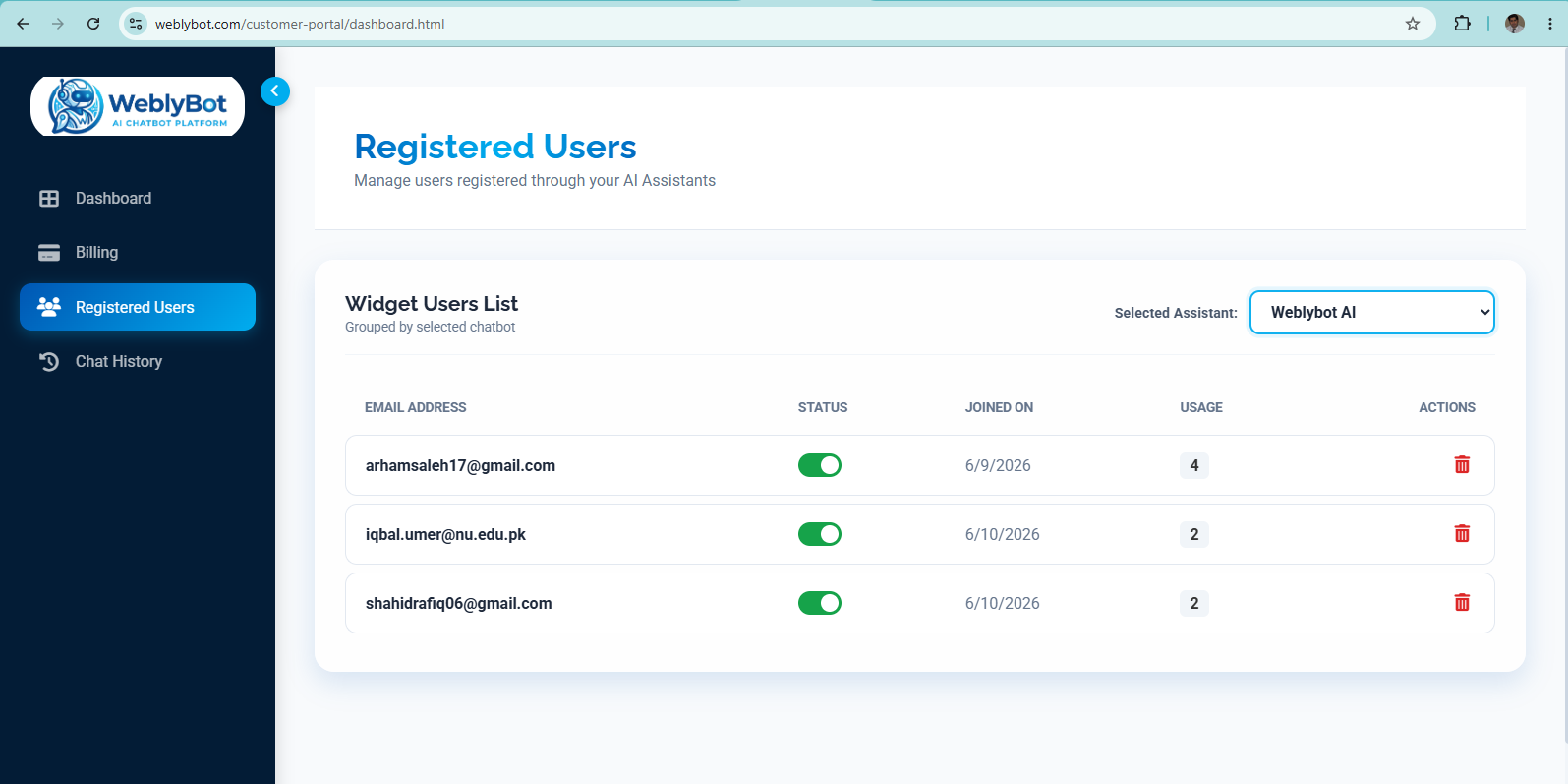
3. Registered Users (Leads)

When visitors talk to your chatbot, the bot might ask for their email address. This tab lists all the people who have interacted with your bot and provided their contact info. It's a great place to collect leads for your business!

Registered Users

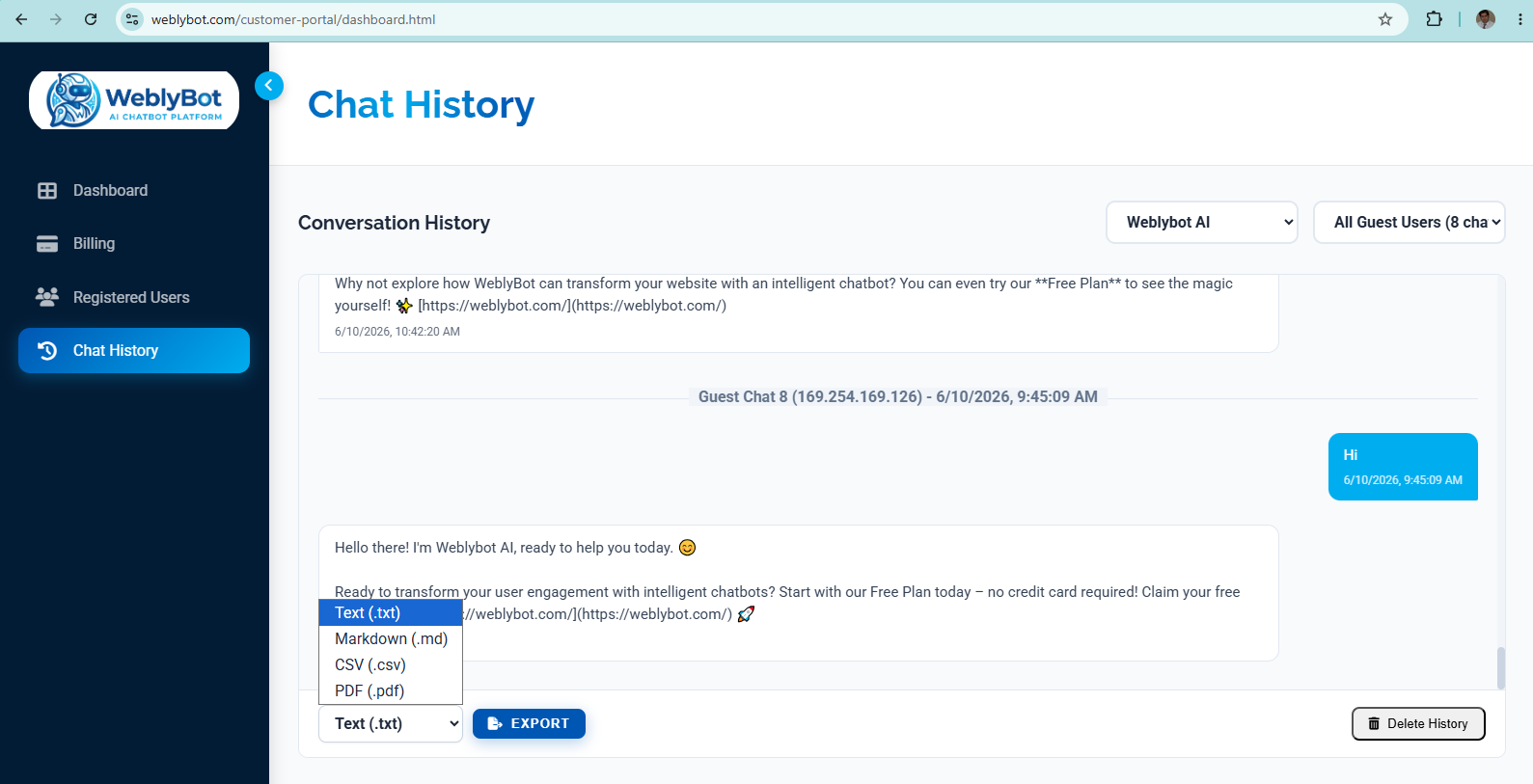
4. Chat History

Want to know what your customers are asking? The Chat History tab lets you read the exact conversations your chatbot had with real visitors. You can see how smart the AI is and even export conversations to save them.

Chat History